How to Cast Quran Recitation to Your TV with Chromecast
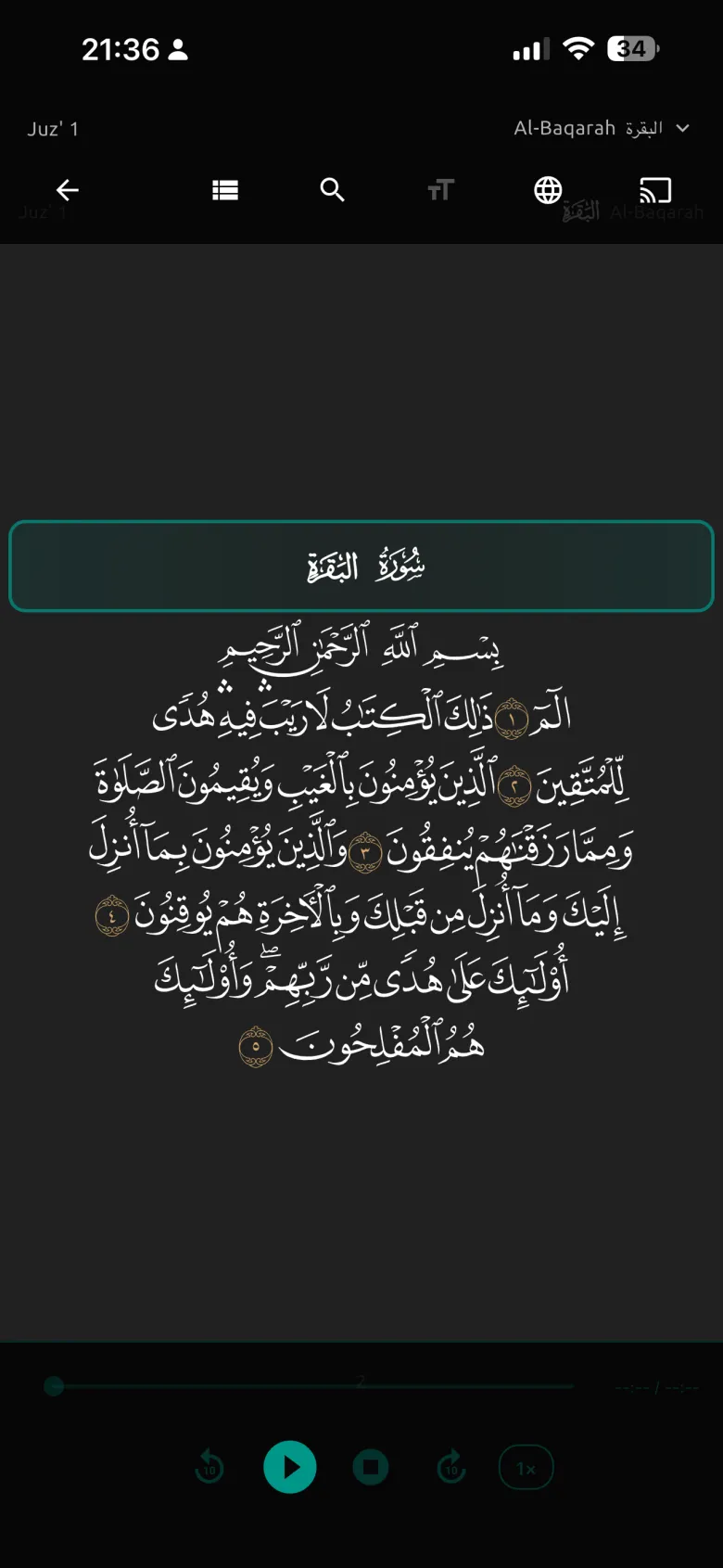
If you want to listen to the Quran on the big screen at home, during a family gathering, or at a mosque event, casting from your phone to a TV is one of the simplest options. This guide walks through how to do it using the Azkar app — one of very few Islamic apps that supports Google Chromecast and Google Nest casting — with real-time verse highlighting on your phone while the audio plays on the big screen or speaker.
What you'll need
- A phone with the Azkar app installed (iOS or Android — free)
- A Google Chromecast, Chromecast with Google TV, or Google Nest smart speaker (Nest Mini, Nest Hub, Nest Audio)
- Both devices on the same Wi-Fi network
Note: AirPlay and Amazon Alexa casting are not currently supported. If you have an Apple TV, you can mirror your screen but full native casting requires a Chromecast or Google Nest device.
Step-by-step: cast Quran recitation to your TV
Set up your cast device
Plug your Chromecast into your TV's HDMI port and make sure it is configured in the Google Home app. It must be connected to the same Wi-Fi network as your phone. For a Google Nest speaker, open Google Home and confirm the speaker shows as online.
Install and open Azkar
Download Azkar for free from the App Store (iOS) or Google Play (Android). Open the app and tap Quran from the home screen.
Pick a Surah and start recitation
Select any Surah from the list. Choose your preferred reciter (sheikh) if you wish, then tap play to start recitation on your phone.
Tap the Cast icon
In the Quran player, tap the Cast icon (it looks like a small TV screen with curved Wi-Fi lines). Azkar will scan your Wi-Fi network and list the available Chromecast and Google Nest devices.
Select your device
Tap your TV or speaker. The audio will move to that device within a second or two. Your phone screen keeps showing the current verse with real-time highlighting, so you can follow along while listening on the big screen or speaker.
Stop casting when done
To return audio to your phone, tap the Cast icon again and choose Stop casting. You can also control playback, change Surahs, or switch reciters while casting is active.
Common use cases
- Family listening: Play the Quran through your TV speakers so everyone in the room can listen together.
- Mosque and study circles: Cast a Surah during community events without needing a laptop or separate sound system.
- Hands-free at home: Cast to a Google Nest speaker in the kitchen and listen while preparing food or resting.
- Memorization (Hifz): Loop a specific verse or entire Surah on the TV while you read and repeat.
Troubleshooting
The Cast icon doesn't appear
Confirm both devices are on the same Wi-Fi network. Guest networks and 5GHz/2.4GHz splits can hide the Chromecast from your phone. Restarting Wi-Fi on your phone usually resolves this.
The Cast icon appears but my device isn't listed
Open the Google Home app and confirm the Chromecast or Nest device shows as online. If not, power-cycle the device by unplugging it for 10 seconds and plugging it back in.
Audio plays but verse highlighting is delayed
Small delays of 1–2 seconds between the cast device and the phone's highlight are normal due to network buffering. If the delay is larger, try switching your Wi-Fi to 5GHz for less interference.
Casting stops when I lock my phone
This is expected on some Android versions. You can keep the Azkar app open in the foreground, or enable background playback permissions for Azkar in your phone's Settings.
What else can Azkar do while casting?
- Switch between multiple renowned reciters without interrupting the cast
- Loop an entire Surah or repeat a single verse for memorization
- Read translations in 10+ languages on your phone while the Arabic recitation plays on the TV
- Bookmark verses you want to return to
Download Azkar for Free
The full Quran, Chromecast casting, prayer times, 99 Names of Allah, and Azkar — all free, no ads.