How to Generate a PDF Prayer Timetable for Your Mosque
Printing a monthly prayer timetable is a common need for mosques, Islamic centers, and families. Most solutions require a laptop, a spreadsheet, and a copy-paste routine that's error-prone. The Azkar app lets you generate a printable PDF timetable for up to 37 consecutive days, from any chosen start date, directly on your phone — ready to print or share in about two minutes.
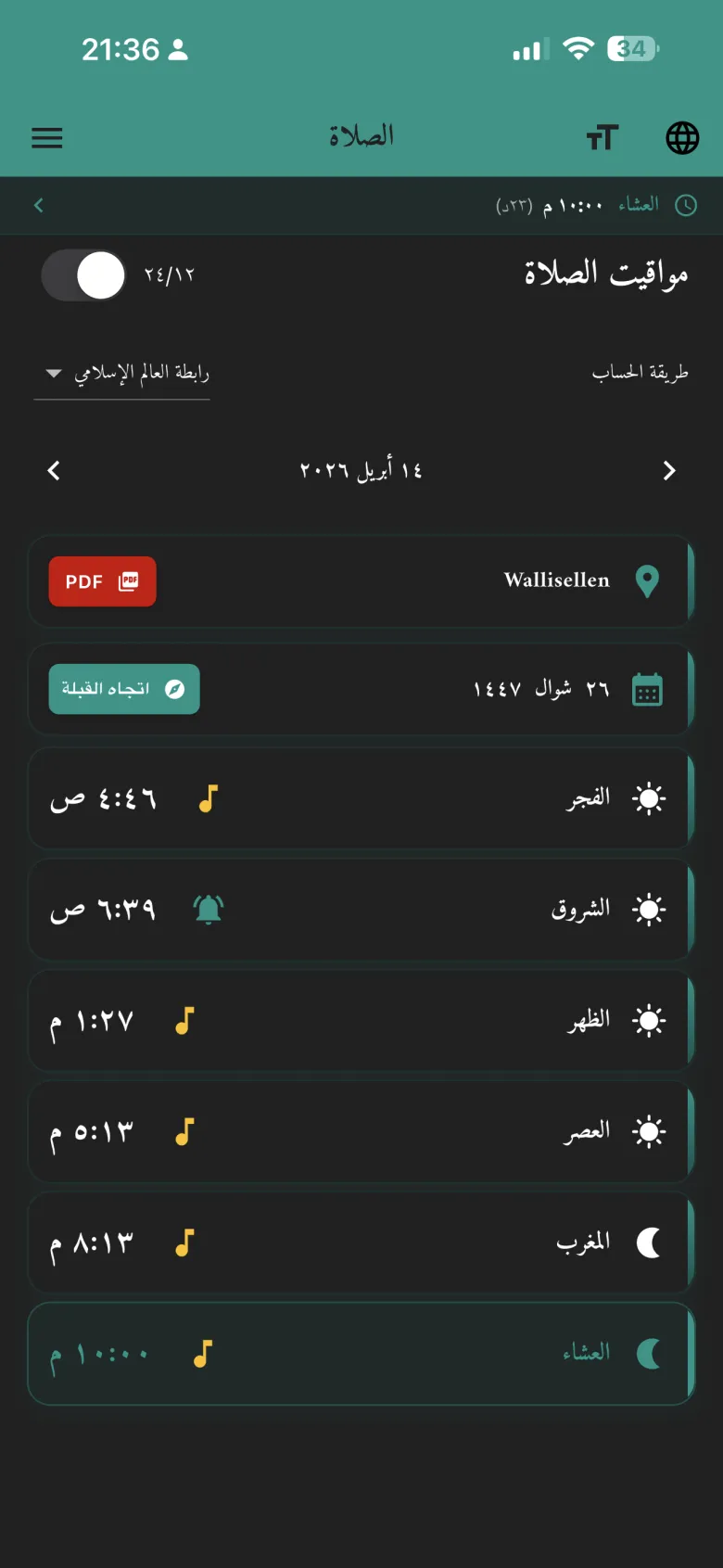
Who this is for
- Mosques and Islamic centers — print a month's timetable for the notice board
- Community centers — share a schedule at events and Jumu'ah
- Families — hang the schedule on the fridge so everyone knows when to pray
- Travelers — generate the PDF before a trip so you have prayer times even offline
What's included in the PDF
- All five daily prayers: Fajr, Dhuhr, Asr, Maghrib, Isha
- Sunrise time (useful for Fajr & Duha planning)
- Gregorian date for each day
- Your location name
- Clean, printable table that fits on a single page (for up to ~31 days) or two pages (32–37 days)
Step-by-step: generate your timetable
Enable location on your device
Prayer times depend on your exact coordinates. Open the Azkar app and allow location access the first time you're prompted. Location is used only on-device for calculations — it is not uploaded anywhere.
Pick your calculation method
Go to Settings → Prayer Times and choose the calculation method your local mosque uses. Common options:
- Muslim World League (MWL) — widely used in Europe and North America
- ISNA — Islamic Society of North America
- Egyptian General Authority — used across Africa and the Middle East
- Umm Al-Qura — Makkah standard
- Karachi — widely used in South Asia
Not sure which method? Ask your local imam or read our dedicated guide to prayer-time calculation methods.
Open the Prayer Times screen
Tap Prayer Times from the home screen. Verify today's times look correct (compare with your mosque's announced times). If they're off, revisit Step 2 to adjust the calculation method.
Open the PDF generator
From the Prayer Times screen, tap the PDF timetable option (look for the PDF or document icon). The PDF panel opens.
Choose start date and duration
Pick the first day you want in the timetable — this can be today, the first of next month, or any date. Then choose a duration from 1 to 37 days. For a monthly schedule, 30 or 31 days is usual; 37 days lets you cover an entire month plus a week on either side.
Generate, share, or print
Tap Generate. The PDF appears in the system share sheet. From there you can:
- Email it to the mosque committee
- Send it via WhatsApp to your family group
- Save it to Files or Google Drive
- Print it directly to an AirPrint or Google Cloud Print printer
Tips for mosque administrators
Generate once, share widely. Create the PDF on an admin's phone, then post it on the mosque WhatsApp/Telegram group, your Facebook page, and print it for the notice board. One file, multiple channels — zero extra work.
- Use the same calculation method every month so worshippers don't get confused by sudden changes.
- Generate the next month's timetable in the last week of the current month and distribute early.
- If your mosque uses a slightly adjusted time (e.g., Iqama 10 minutes after Adhan), note that separately on the printout.
- Keep an archive of the PDFs by month — useful reference for coming years.
Frequently asked questions
Why only 37 days?
37 days covers any calendar month plus a buffer on either side. Longer schedules accumulate more GPS/DST drift and are less practical to print on a single sheet.
Does it adjust for daylight saving time (DST)?
Yes. The timetable respects your device's time zone and DST rules, so a schedule that spans a DST change will be correct on both sides.
Can I generate a yearly calendar?
Not in one file, but you can generate 12 monthly PDFs quickly and combine them into a single archive.
Does this work offline?
Yes. Once your location is set and the calculation method is chosen, PDF generation runs locally on your device with no internet required.
Download Azkar for Free
Generate printable prayer timetables, listen to Quran, find Qibla, and more — all free.